The TrialWorks Closing Statement report is a perfect example of a report that would need to be modified before presenting it to a client. To run this report, click on the ‘Current Case’ tab on the HOME ribbon. Then “Closing Statement”. Multiple closing statement report options are available. Select the appropriate report, and click “OK” to allow the report to settlement information from the settlement calculator.
Once the report has generated, the print preview menu allows for various options to edit and print.
Custom Sort: The custom sort, limit to category and filter features are available depending which report is run. For the Closing Statement Report, there is no need to filer based on internal firm criteria. Case list or Docket report, have the option to filter or sort by date, liability or Attorney/Support.
Print: Select the number of copies and print.
Email: Generate and send an email of the report using Excel, HTML format, or PDF formats.
PDF or XPS: Save and/or print to PDF or XPS formats. PHOTO 7 & PHOTO 8
Word: Save in Microsoft Word format.
Text File: Save a text file, which will convert the report into plain text.
Size: Change the size of the report by using standard Microsoft Office sizing charts. Modify to a letter sized 8 ½ x 11 to a legal size, 8 ½ x 14.
Margins: Customize report margins to normal, wide, narrow, or customize to a user’s liking.
Setup: Print the report in portrait or landscape mode. The ‘Print Data Only’ checkbox will format without any excess lines and dots, printing only the necessary text and numbers in the report.
Page Setup Button: Edit size, margins, page orientation, and columns.
Zoom: Zoom in and out to preview the report before printing.
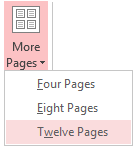
 Pages:
 View report over one page, two pages, four, eight or twelve pages.
 Close Print Preview:
 Close the preview to return to TrialWorks.


