Showing posts with label case management. Show all posts

Thursday, May 07, 2015

TrialWorks Tip of the Week


Wouldn’t it be convenient to take your Scheduling Order and enter all important dates at ONCE?

Use the Important Dates button on the toolbar of the Docket TAB. 

Head to the ‘Docket’ tab to access the Important Dates feature.
                               

Along the bottom bar, click ‘Date Info’
                                             

Enter one date, or multiple dates. Create docket items, Outlook calendar entries or print a report.


Check back next week as we dive further into 'Important Dates,' and learn how to docket the entries and add them to your Outlook calendar! For previous Blog and Tip of the Week posts from TrialWorks, head over to http://trialworks.blogspot.com/

Wednesday, April 15, 2015

Modifying A Canned Report


The TrialWorks Closing Statement report is a perfect example of a report that would need to be modified before presenting it to a client.  To run this report, click on the ‘Current Case’ tab on the HOME ribbon. Then “Closing Statement”. Multiple closing statement report options are available. Select the appropriate report, and click “OK” to allow the report to settlement information from the settlement calculator.


Once the report has generated, the print preview menu allows for various options to edit and print.


Custom Sort: The custom sort, limit to category and filter features are available depending which report is run. For the Closing Statement Report, there is no need to filer based on internal firm criteria. Case list or Docket report, have the option to filter or sort by date, liability or Attorney/Support.

 Print: Select the number of copies and print.


  Email: Generate and send an email of the report using Excel, HTML format, or PDF formats.


 PDF or XPS: Save and/or print to PDF or XPS formats. PHOTO 7 & PHOTO 8
Word: Save in Microsoft Word format.
Text File: Save a text file, which will convert the report into plain text.


 Size: Change the size of the report by using standard Microsoft Office sizing charts. Modify to a letter sized 8 ½ x 11 to a legal size, 8 ½ x 14.


 Margins: Customize report margins to normal, wide, narrow, or customize to a user’s liking.


Setup: Print the report in portrait or landscape mode. The ‘Print Data Only’ checkbox will format without any excess lines and dots, printing only the necessary text and numbers in the report.


 Page Setup Button: Edit size, margins, page orientation, and  columns.


Zoom: Zoom in and out to preview the report before printing.


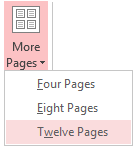
Pages: View report over one page, two pages, four, eight or twelve pages.


Close Print Preview: Close the preview to return to TrialWorks.

Tuesday, April 07, 2015

Case Summary


OVERVIEW & REPORT

The Case Summary tab is your non-editable, one stop shop to learn anything and everything about a specific case. Quickly view the case’s file number, relevant parties, where the case originated from, attorneys and support on file, the Judge and what court the case is in. Learn the detailed case facts, and any negotiations made in the case.


In the Case Summary tab you can view any other parties assigned to the case as well as who their attorney is. Easily find insurance information such as policy numbers, claim numbers and adjuster contact info. You can also see the current status of the case; how far along the investigation is going, how many days they’ve been open, and when they are set to expire. Lastly, as shown as the Tip of the Week, along the bottom is the case summary bar’s location. Here is where the time, date and which employee made the last modification is found.


RUNNING THE CASE SUMMARY REPORT

Select Reports → click Case → hover over Overview


Scroll to Case Summary Report and click


You will be prompted and have the option to include any case notes. 


Your report will generate into a print preview and ultimately look like the below report.


Ever wonder if this, or any other canned report can be modified? Check back next week for another installment of our blog and Tip of the Week by TrialWorks.

Have a suggestion or topic you’d like to see featured? Let us know! Email scheduling@trialworks.com with the subject line: ‘Tip of the Week!’